# Adding Wallets

<ol class="steps">
<li>

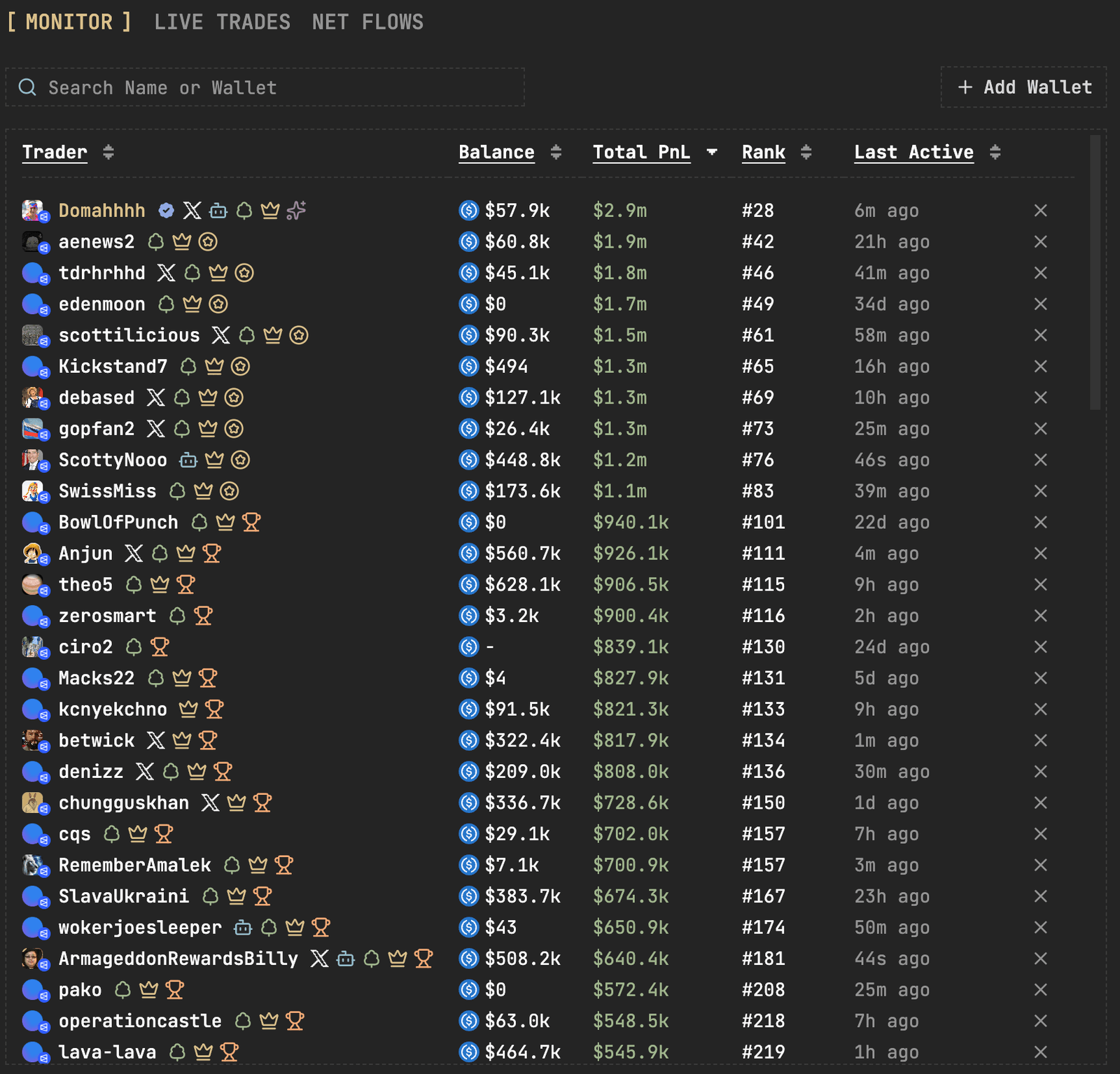
**Go to the Wallet Tracker**

The Wallet Tracker is in the bottom left corner.

<div align="left"><figure><img src="https://predictparity.com/docs/img/features-wallet-tracking-adding-wallets-1.png" alt="The Monitor tab of the Wallet Tracker, listing tracked traders with balance, total PnL, rank and last active time, and the Add Wallet button." width="563" height="540"></figure></div>

</li>

<li>

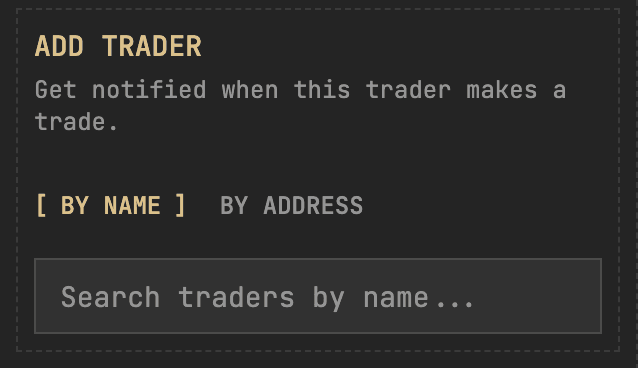
**Click "Add Wallet"**

You can add a trader two ways:

* **By Name** — Search for traders by their username
* **By Address** — Paste a wallet address directly

<div align="left"><figure><img src="https://predictparity.com/docs/img/features-wallet-tracking-adding-wallets-2.png" alt="The Add Trader dialog, with By Name and By Address options and a trader search box." width="319" height="184"></figure></div>

</li>

<li>

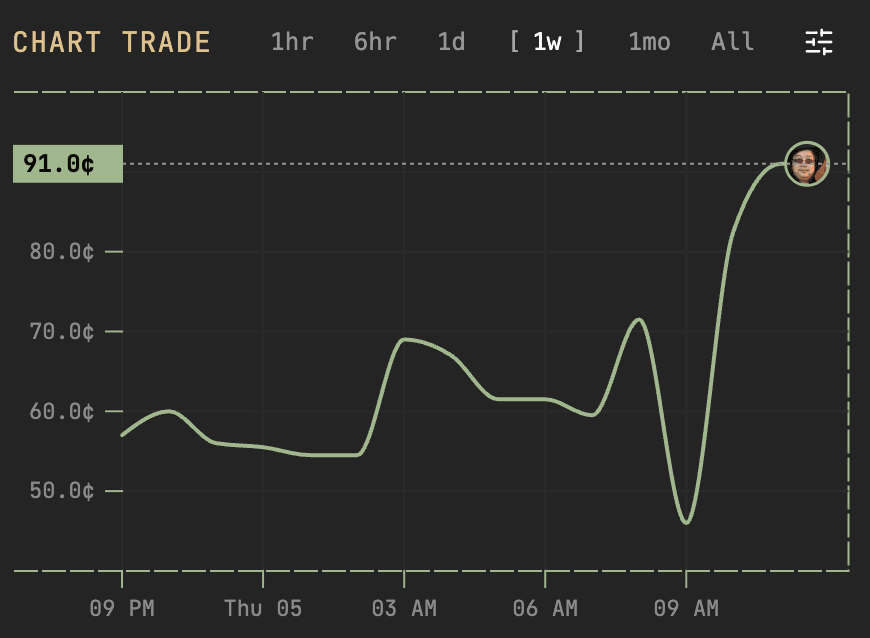
**Enjoy tracking!**

Once added, you'll get notified when that trader makes a trade. Their activity will also appear on market charts.

<div align="left"><figure><img src="https://predictparity.com/docs/img/features-wallet-tracking-adding-wallets-3.png" alt="A market price chart with a tracked trader's picture marking their trade." width="375" height="275"></figure></div>

</li>
</ol>

## Custom Names

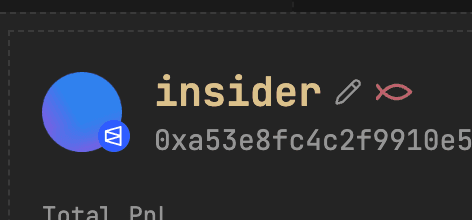
You can assign custom names to any tracked wallet. This makes it easier to identify wallets at a glance across the platform — in the monitor view, on charts, and in the counterparty analysis.

<figure><img src="https://predictparity.com/docs/img/features-wallet-tracking-adding-wallets-4.png" alt="A tracked wallet showing its custom name, with the pencil icon used to edit it." width="472" height="220"></figure>

Source: https://predictparity.com/docs/features/wallet-tracking/adding-wallets