# Multiview
Trade several markets side by side from one screen.
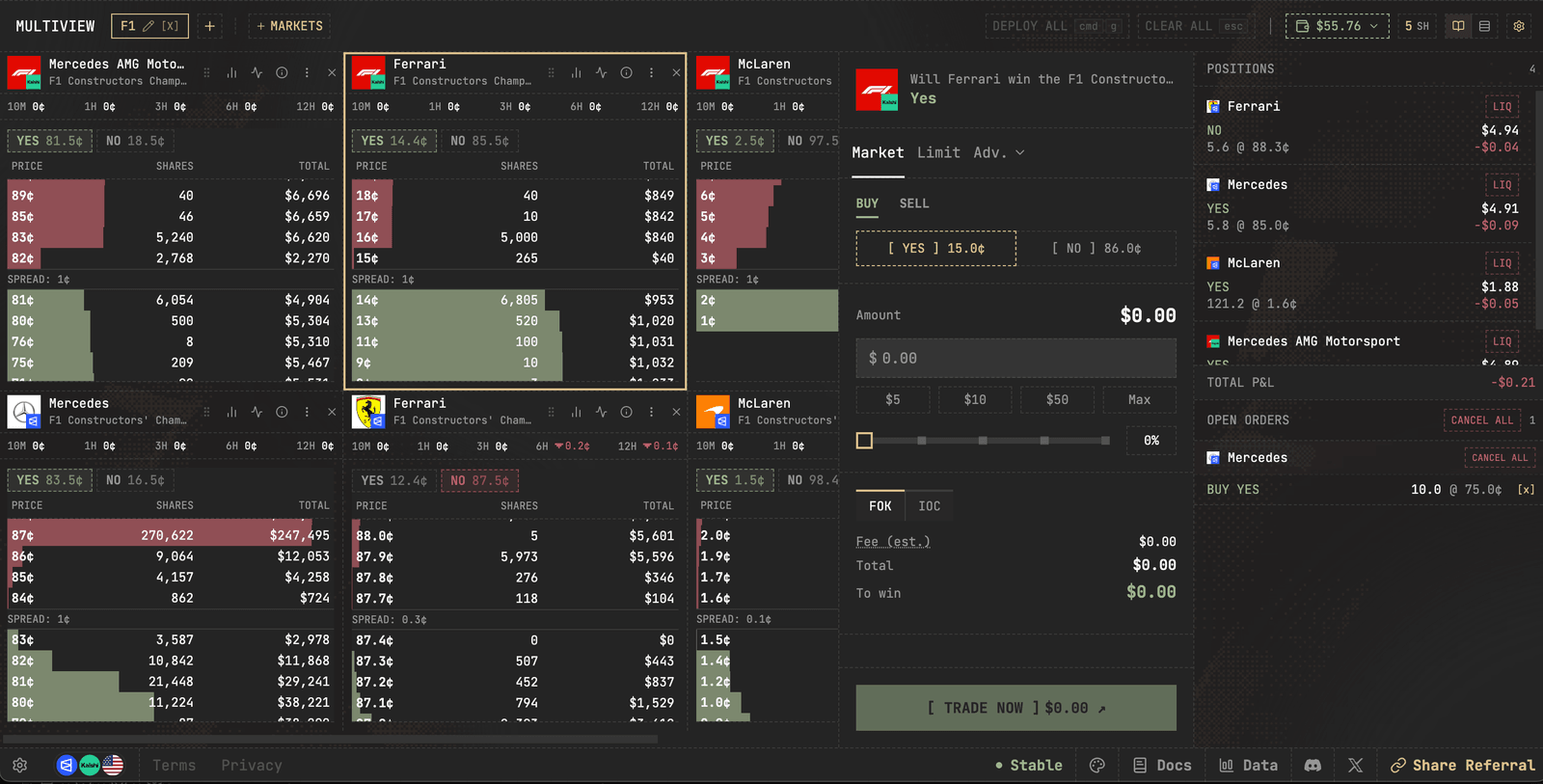
**Multiview** puts several markets from any venue in columns on one screen, each with its own live orderbook, so you can watch and trade a set of related markets without switching pages.
It is built for desktop. The nav entry is hidden on phones because the layout needs the width.
## Laying it out
Add the markets you want as columns, then arrange them into a grid. Your layout, column set and row count are remembered between sessions, so a set you use often is there when you come back.
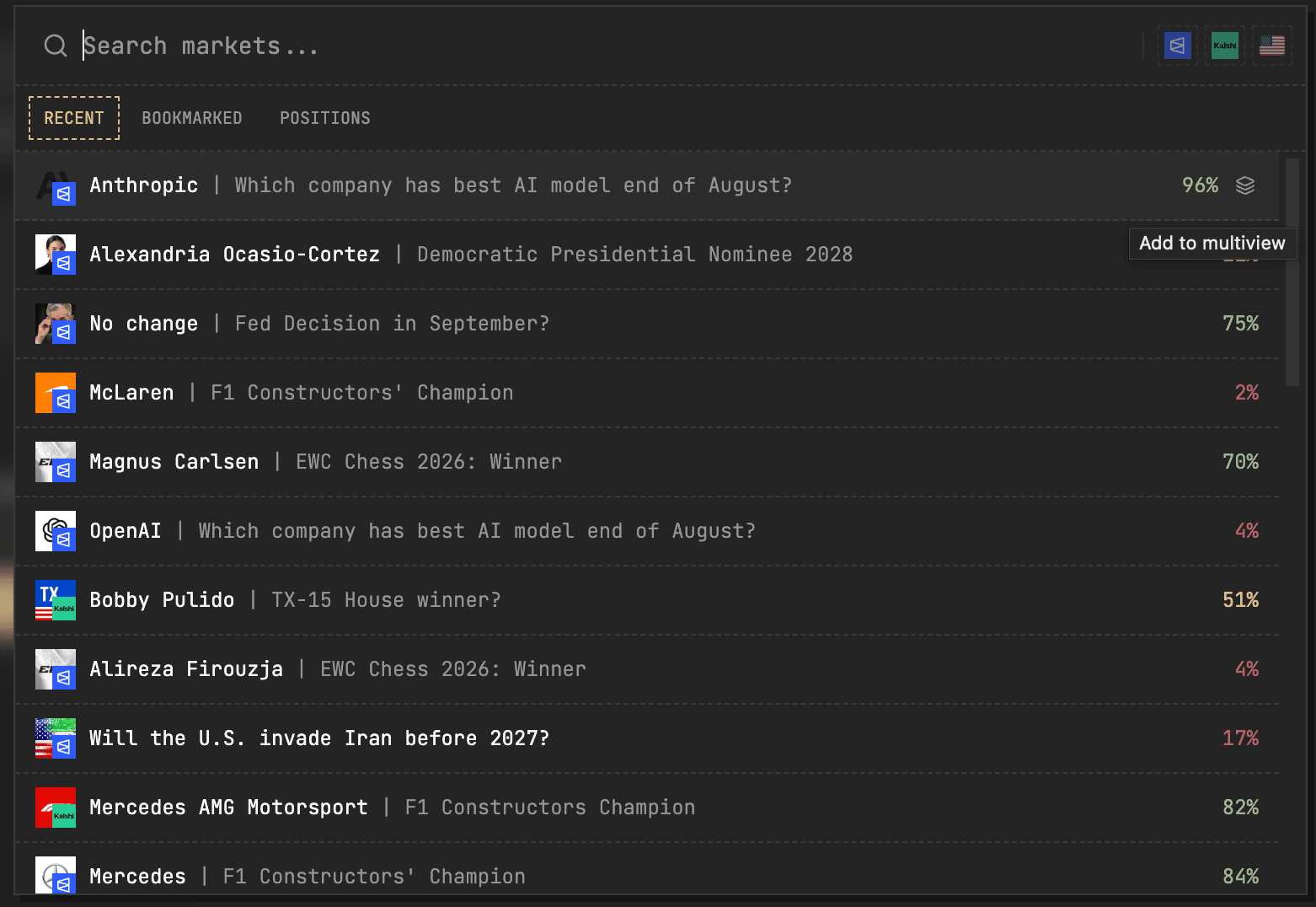
Search and click to add markets
Press the stack icon (pictured below) to add all markets under the event to Multiview.
## All-venue orderbooks
When the same market trades on more than one venue, a column can show every venue's book side by side instead of one. Toggle it with the stacked-books icon in the column header, or choose **All venues** from the column's menu. Each venue gets its own column of depth, labelled **POLY**, **PM US**, **KALSHI**, **PASCAL** and **HL** (Hyperliquid), so you can see where the best price is before you trade.
## Ladder mode
Each column can show a **ladder**: a price scale with the book either side, where you click a price level to stage an order at it. Ladder mode is the fastest way to work several markets at once, and it is where multiview earns its place over separate tabs.
## Settings
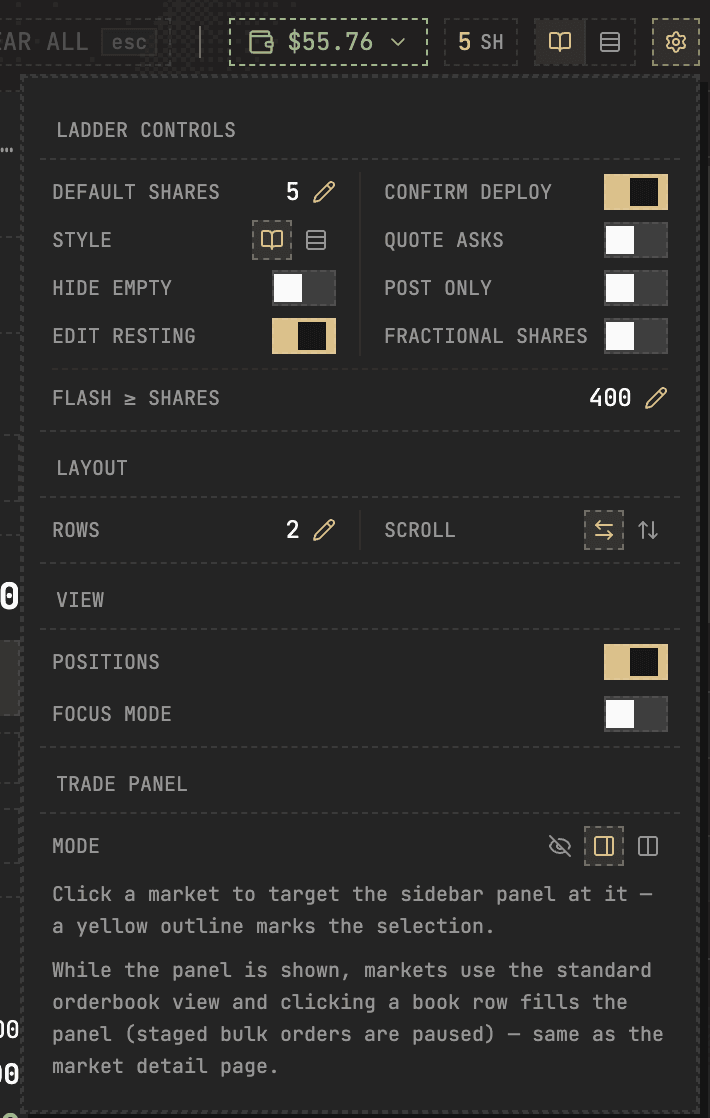
The gear icon opens per-view settings. The ones worth knowing:
* **Confirm before deploy** - review staged orders before they are sent. On by default.
* **Trade panel:** Add a trade panel to quickly select orderbooks and fill in trades.
* **Post only** - force staged orders to rest rather than cross the spread.
* **Default shares** - the size a click stages.
* **Fractional shares** - allow sizes that are not whole numbers. Kalshi, Pascal and Hyperliquid only accept whole contracts.
* **Edit resting on click** - clicking your own resting order edits it instead of cancelling.
* **Hide empty** - drop columns with no book.
Source: https://predictparity.com/docs/features/multiview